
FIGURES
Gargoyle
A sculptural figure to consider for size, supports and a stable base.
Explore this ideaExplore the move from GLB, glTF, OBJ or STL toward a print-ready 3MF workflow.
Consider dimensions, orientation and color before opening your model in a 3D studio.
Describe a shape, explore a 3D workflow, and review the result in the studio.
Prompts and model ideas are sent when you continue to the studio.
Explore model ideas across figures, home decor and gadgets. Choose a starting point for your own print workflow.
A sculptural figure to consider for size, supports and a stable base.
Explore this idea
A detailed bird figure with fine textures worth checking before printing.
Explore this idea
A playful upright character with proportions to review for a print.
Explore this idea
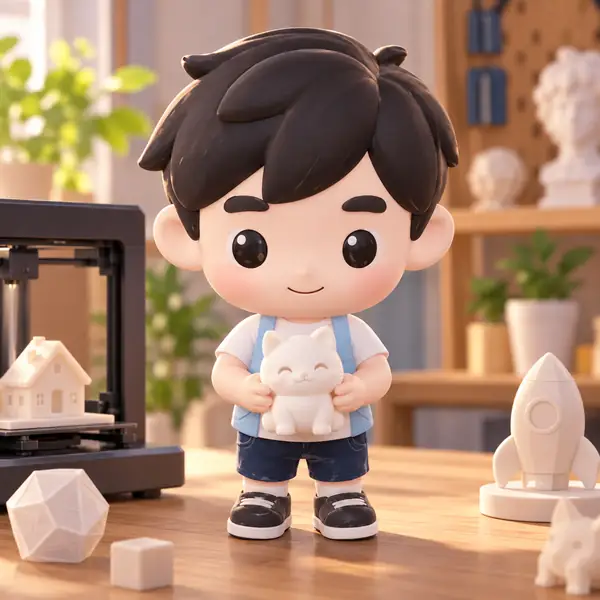
A small character whose delicate features may benefit from scaling up.
Explore this idea

A decorative miniature with overhangs and small details to inspect.
Explore this idea
An ornate object with handles and projections that may need supports.
Explore this idea
A standing figure with thin antlers that call for a careful print plan.
Explore this idea

A game piece with a useful base and recognizable silhouette.
Explore this idea
A detailed gadget concept to examine at your intended print size.
Explore this ideaStart with a GLB or another 3D model. Review its shape and decide what you want the finished print to be.
Choose an intended size in millimetres and check that the model stands the right way up.
Review the output in a compatible 3D workflow, then check it in your slicer before printing.
Changing a GLB filename to 3MF does not make a model ready to print. Scale, orientation, open geometry and color handling all deserve a closer look before the model reaches your slicer.
Look for openings, delicate features and surfaces that may cause slicing problems.
Think in millimetres rather than assuming a GLB contains the print dimensions you expect.
Check whether your chosen 3MF workflow carries the appearance information you need.
Details thinner than about 1 mm, like antennae or tails, may not print. Scale the model up or thicken them.
Steep overhangs may need supports. Let your slicer add them, or adjust the model’s orientation.
Check the detail at your intended print size; your slicer and printer determine what can be reproduced.
Turn an idea into a 3D model workflow, then plan its next step toward a print.
Explore a printable shape from a description or reference.
Start with a picture to describe the figure you have in mind.
Consider how to show your design before making it.
Studio features and access terms are shown on the destination site.
GLB is commonly used to package a 3D scene for viewing and sharing. 3MF is designed to carry manufacturing-oriented model information into compatible printing workflows.
GLB and glTF are common starting points. OBJ and STL can also be useful, but their appearance and material information may differ. Check the formats supported by your chosen studio and slicer.
Both STL and 3MF are used in 3D printing. Your slicer’s support, and whether you need color or other model information, can help determine the better choice.
CAD models often need to be converted into a printable mesh. Review their scale and geometry before passing that mesh to your slicer.
That depends on the dimensions set in your model and slicer. Always confirm the displayed measurements in millimetres before printing.
3D applications can use different up axes. Inspect the model after import and rotate it so the intended base meets the build plate.
Review scale, orientation, thin features, gaps and surfaces. A slicer preview can reveal issues before you start a print.
No. Small mesh problems may be straightforward to fix, while missing geometry or complicated intersections can require editing the original model.
Color handling varies by source file, conversion workflow and slicer. Inspect the resulting model rather than assuming its original appearance will carry over.
No. This page offers guidance and example prompts. If you continue, any model work takes place on the destination studio site under its terms.
Start with an idea. Check the model before it reaches your slicer.


